
RFP Software with Microsoft Office Integration: What to Look For
Most RFPs arrive as Word documents or Excel spreadsheets. If your response software forces your team to leave those formats, copy content across platforms, and reformat everything before sending, you are spending time on logistics instead of on winning. RFP software built with native Microsoft Office integration removes that friction entirely.
This post covers why Office integration matters, what to look for in Word versus Excel, and how RocketDocs LaunchPad delivers both in a single toolbar add-in.

Why Microsoft Office Is Still the Standard for RFP Responses
Microsoft Office remains the dominant platform for business documents across every major industry, including financial services, healthcare, technology, and government contracting. Procurement teams issue RFPs in Word because it supports rich formatting, page layouts, and tracked changes. They issue DDQs and compliance questionnaires in Excel because of its structured row-and-column format.
When your response software runs natively inside those applications, your team avoids the confusion of juggling multiple tools. New team members onboard faster because they are already working in a platform they know. Clients and prospects receive documents in the formats they requested, with no compatibility issues on their end.
According to the Association of Proposal Management Professionals (APMP), response teams that reduce tool-switching time cut their overall cycle time significantly. Staying inside familiar applications is one of the fastest ways to achieve that reduction. You can learn more about APMP benchmarks at apmp.org.
The Formatting Problem RFP Tools Often Create
One of the most persistent complaints about RFP software is unpredictable formatting on export. A writer spends hours building a polished response inside a standalone platform, exports to Word, and discovers that spacing, fonts, and table structures have shifted. Correcting those issues can consume as much time as writing the original response.
Native Office integration eliminates this problem. Because writers work directly inside Word, what they see on screen is exactly what the issuer receives. There is no export conversion step where formatting can break. Writers can apply their organization's existing branded templates and trust the output completely.
What Good Microsoft Word Integration Looks Like for RFP Software
Word-based proposals and questionnaires are the most common format in the RFP space. When evaluating how well an RFP tool integrates with Word, look for these capabilities:
Content library access from the toolbar. Writers should be able to search, filter, and pull approved responses directly into a document without switching to a separate browser tab or application.
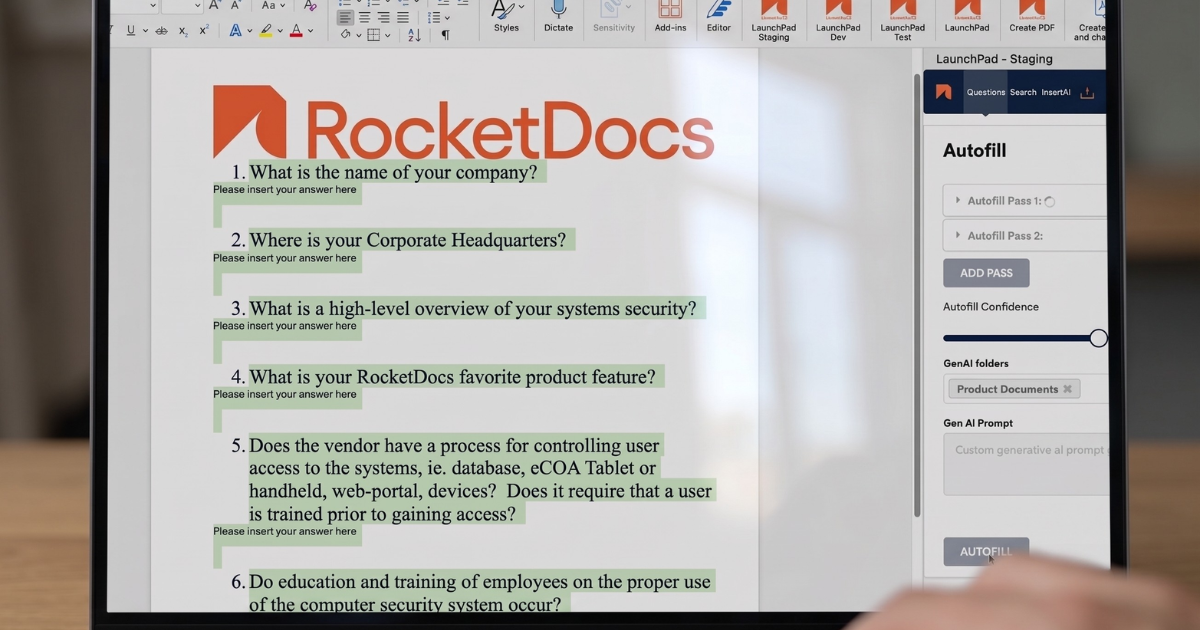
Autofill for questions. The software should be able to read the questions in your document and suggest the best-fit responses from your library, surfacing relevant content so writers can review and approve rather than write from scratch.
Rich text, image, and chart insertion. A strong response often includes more than plain text. Your Word integration should support inserting formatted blocks, images, and charts without disrupting the surrounding document layout.
In-document collaboration. Native Word features like comments and tracked changes should remain fully functional alongside your RFP tool so teams can review and revise without jumping to a separate workflow platform.
What Good Microsoft Excel Integration Looks Like for RFP Software
Excel-based questionnaires appear frequently in DDQ workflows, security questionnaire responses, and recurring vendor due diligence cycles. These documents tend to be data-heavy, multi-tab, and structured with strict column layouts. A weak Excel integration will misfire on cell targeting, break cell formatting, or require manual copy-paste.
Look for these capabilities when evaluating Excel integration:
Cell-accurate autofill. The software should insert responses into the correct cells, not just append text to a general area. Precision matters when a questionnaire has hundreds of rows across multiple tabs.
Content library search inside Excel. Writers should be able to search their approved content library from a toolbar panel without leaving the spreadsheet. Switching between Excel and a browser mid-response slows the process and increases error risk.
Support for multi-tab documents. Many DDQs and security questionnaires span several worksheets (General, Security, Platform, and so on). Your integration should work consistently across all tabs, not just the first one.
How RocketDocs LaunchPad Delivers Native Office Integration
RocketDocs LaunchPad is a toolbar add-in that appears directly inside Microsoft Word and Microsoft Excel. It connects your content library, autofill engine, and AI-assisted response tools to the document you are already working in, with no tab switching required.
From the LaunchPad panel, writers can search the full content library, run autofill passes with configurable confidence thresholds, apply GenAI-assisted drafting against specific content folders, and review a parse report showing how many questions have been answered versus remain open. All of this happens without leaving the document.
Teams using LaunchPad in Excel benefit from cell-accurate insertion, meaning responses land in the right cell on the right tab every time. Teams using LaunchPad in Word can run multiple autofill passes, each targeting a different subset of the content library, so complex proposals can be handled in layers.
Because LaunchPad is built into the Office toolbar, it requires no new interface to learn. Writers who know Word and Excel are productive in LaunchPad from the first session. For proposal managers overseeing large or recurring response programs, that low onboarding curve translates directly into faster cycle times and more capacity to pursue additional opportunities.
You can explore how LaunchPad works in detail. To see how RocketDocs handles the broader response workflow, including content library management and team assignments, visit the platform overview. If you want to understand how this plays out in practice for DDQ-heavy teams, the DDQ completion solution page covers that workflow specifically.
Comparing Word and Excel Integration Requirements
| CAPABILITY | MICROSOFT WORD | MICROSOFT EXCEL |
|---|---|---|
| Content library search | Required | Required |
| Autofill to correct location | Paragraph-accurate | Cell-accurate |
| Multi-section support | Headings and sections | Multi-tab worksheets |
| Rich text and image insertion | Important | Less common |
| Collaboration features | Comments, track changes | Comments, track changes |
| Parse report visibility | Useful | Essential for large DDQs |
Key Takeaways
Proposal teams waste significant time when their RFP software requires them to leave Word and Excel to get work done. Native Microsoft Office integration keeps writers in the tools they know, removes formatting risk, and makes collaboration faster. When evaluating RFP software, test the Word and Excel integrations specifically. Look for toolbar-based access, accurate autofill, and content library search that works without a browser tab.
RocketDocs LaunchPad is designed to meet all of those criteria. Schedule a demo to see it in action.
Looking for the platform behind this? See the RocketDocs platform or book a demo.


